There's a lamp in a photo you saved six months ago. No brand name. No caption. You remember nothing about where you saw it, and "brown lamp" in Google Images is getting you nowhere.
That's the situation most image search techniques were built for, and most people still don't know half of them exist. Every month, Google Lens alone handles over 20 billion visual searches, with 43% increase from its monthly average since 2024.
The people using it aren't doing anything complicated. They've just figured out a few methods that the average searcher hasn't.
Here's what those methods are.
What are the fastest image search techniques?
Just upload your picture to Google Images, TinyEye, or Bing Visual Search. And within a few seconds, you'll see a list of every page where it appears, visually similar results, its source, and its publishing date. That single step handles most situations.
Everything below is for when it doesn't.
10 Image Search Techniques Worth Your Time
1. Reverse Image Search, The Starting Point
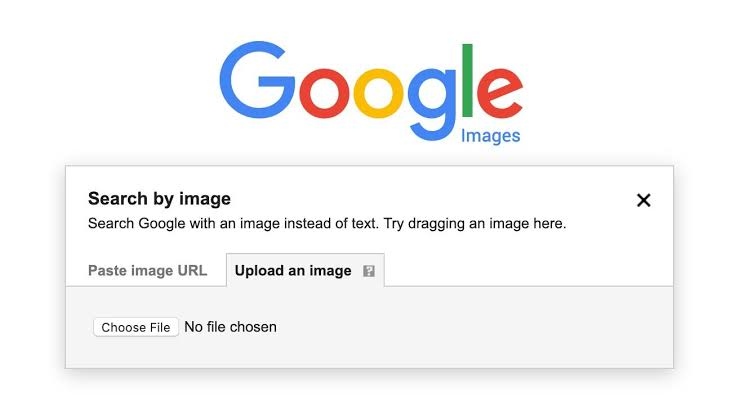
Reverse image search is usually the first place to start. Instead of typing keywords, you upload an image and let the search engine work backward. If it recognizes the picture, it can show where the image has appeared online, related versions of it, and sometimes clues about its source.
Go to images.google.com → hit the camera icon → upload a file or paste an image URL.
On mobile, hold down on any image and select Search image (if you are using Chrome).
Google returns every page hosting that image, plus similar ones.
The practical applications are broader, and most of the people do not know it.
Journalists use this to catch recycled photos being passed off as current news. Buyers use it to find a product they only have a screenshot of.
Designers use it to track down a copyright holder before licensing anything. No single search engine covers the whole web, though, so if Google comes up empty, run the same image through TinEye before giving up.
TinEye sorts results by date, and this is how we can know when a photo first appeared online. Sort by Oldest. This way, you find the true origin of a viral image, not just the hundredth repost of it.
2. Google Lens: Your Camera as a Search Bar
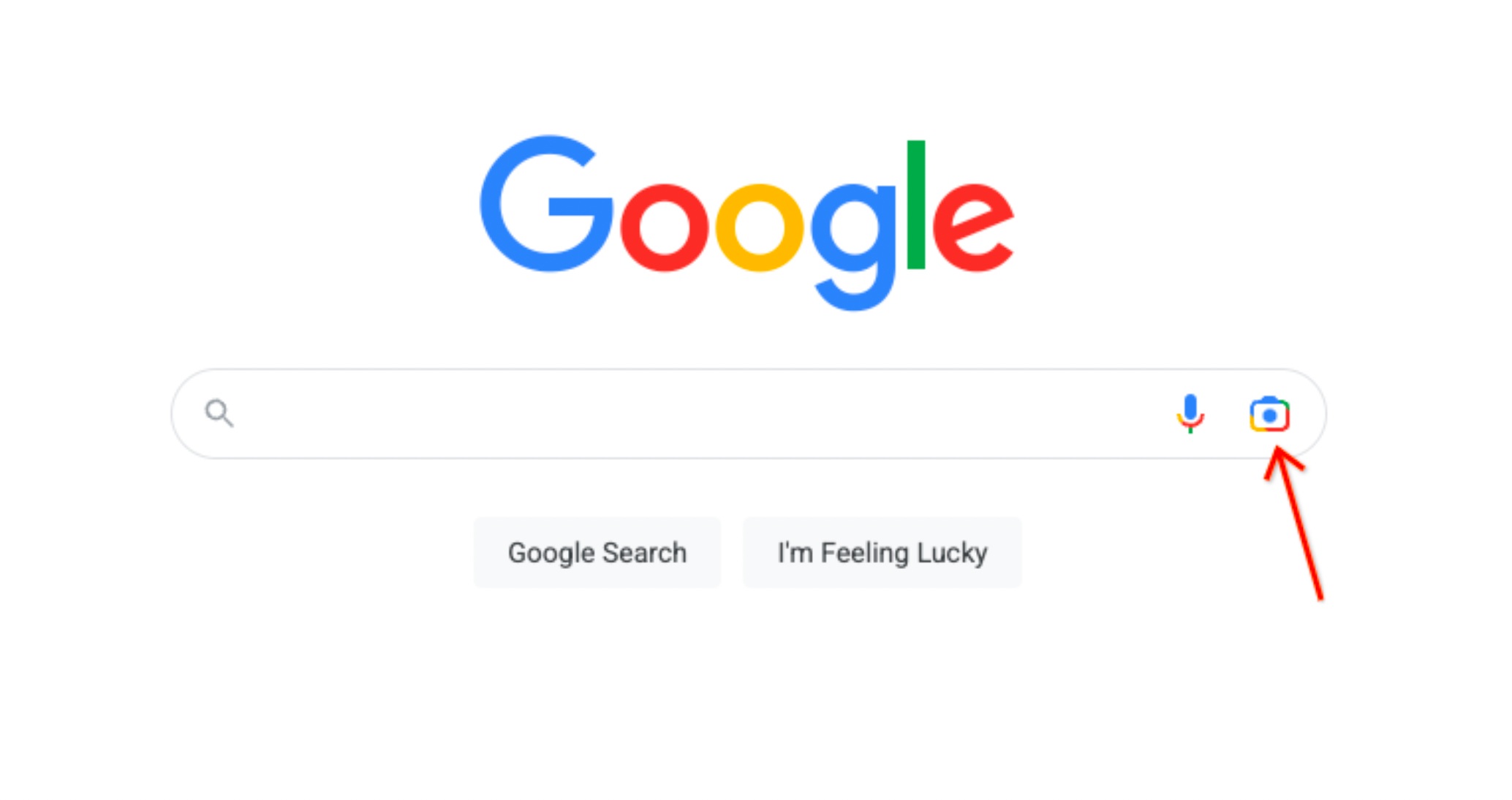
Point. Tap. Done.
Google Lens moved visual search from the desktop to the real world
It works on plants, furniture, restaurant menus, street signs in languages you don't read, product tags, and math problems on a whiteboard.
It identifies the object, reads the text, or pulls shopping results, with no typing required. It lives inside Google Photos, the Google app on both iOS and Android, and Chrome on desktop (right-click any image, "Search image with Google").
62% of shoppers now say they'd rather search by image than type out a description when they're hunting for a specific product. Lens plugs directly into Google Shopping, so a photo of a chair at a friend's house can return the exact product page with current pricing before you've left their living room.
3. Smarter Text Queries in Google Images
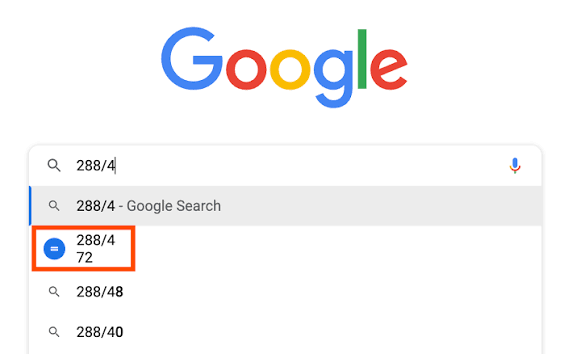
"Table" shows everything. "Round marble bistro table with 60cm" shows the results that you're actually looking for.
Google Images ranks results against alt text, file names, captions, page titles, and nearby paragraph text, not the image itself. So the more precisely you describe what you want, the better the match. A few operators that most people never bother with:
Wrap a phrase in quotes, "Eames lounge chair" replica, and Google search it as an exact-match requirement in surrounding metadata.
site:nasa.gov nebula pulls images only from NASA's indexed pages. Swap in any domain you trust.
filetype: png transparent logo returns PNG files, which support transparent backgrounds. If you're a designer who regularly needs layered assets, this one saves time every week.
4. Advanced Image Search Filters
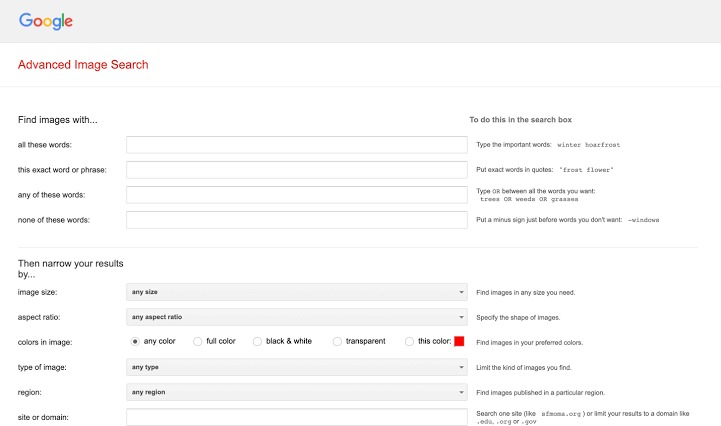
Go to google.com/advanced_image_search.
From there, you can filter by image size, color, file type, region, aspect ratio, and usage rights, all in one place. The usage rights filter is the most practically useful. Switch it to Creative Commons, and you're looking only at images cleared for reuse without a licensing fee. Switch to commercial licenses, and you restrict results to content you can legally publish in a business context.
Color filtering is underrated for design work. Search your topic, click Tools, click Color, choose a hue, and the results narrow to images where that color dominates. It cuts the mood board assembly time significantly.
5. Crop Before You Search
One mistake people make is searching with an entire photo when only a small part of the image matters.
If you're trying to identify a watch, a logo, or a piece of furniture, cropping out everything else usually produces much better matches than the same object buried inside a cluttered room photo.
Both Google Lens and Bing Visual Search let you drag a crop selection before submitting. Use it.
On the Google app for mobile, drag the selection handles in Lens to isolate your target. On a desktop, the Google Images viewer allows region selection once you've uploaded.
6. Bing Visual Search, Better for Shopping Rooms
Go to Bing Visual Search and upload a room photo, and it will place clickable dots on each item in the image, the rug, the sofa, the light fixture, without you doing any manual cropping. Click a dot on that specific item, and it opens a product search with price comparisons in the sidebar.
If you're trying to shop a whole interior from a single reference photo, Bing handles that workflow better than Google does right now. It also indexes different corners of the web, so an image that Google can't place is worth running through Bing before writing it off.
7. Yandex Images, For When Google Comes Up Empty
When Google and Bing don't return useful results, Yandex is worth trying. Its image database often surfaces matches from parts of the web that the major English-language search engines don't prioritize, particularly websites from Eastern Europe and certain art or photography archives.
This makes it a very useful tool for preliminary verification tasks, such as confirming identity claims in photographs or tracing artworks to their original institutions.
Take those results as a lead to follow up, not a final answer; cross-reference anything important through a second source.
8. OCR Search, Finding Text Trapped Inside Images
A lot of valuable information is locked inside images. Screenshots, scanned PDFs, and photos of book pages may contain text, but search engines can't always read it directly. OCR (Optical Character Recognition) technology solves that problem by converting the text inside an image into searchable and editable words.
With tools like Google Lens, you can point your camera at printed or even handwritten text, then copy it instantly. It works well for things like product labels, handwritten notes, or citations you want to look up online. The text becomes usable within seconds, ready to paste anywhere.
ABBYY Fine Reader is one of the best tools for larger or more complex tasks, especially when you need to process multiple pages at a time or higher volumes of documents.
9. EXIF Data, What the Photo Remembers
Every digital picture has its metadata at the moment it's taken: the camera model, the GPS coordinates, the timestamp, sometimes the photographer's name and copyright details. This is called EXIF data.
The Jeffrey's EXIF Viewer (available for free, and online) and ExifTool (also available for free, and on desktop) both read EXIF data. If someone sends you a photo and claims the picture was taken at a particular place, at a particular time, checking its EXIF data will quickly validate, confirm, or contradict that claim in 30 seconds.
Journalists use this routinely before publishing photos from sources.
It is important to remember that any platform that uploads photographs to its site, such as Facebook, Instagram, X strips EXIF data from uploaded images. If there is no EXIF data, this could mean that the image had gone through a social media platform.
10. Pinterest Visual Search, For Aesthetic Research
Pinterest is creating something unique and different from its competitors
Click the camera icon on any pin, → select a portion of the image to search for similar images, color palette, or even an object from a network of boards curated by human editors. The resulting images return only from selected boards, not from the entire Internet, as we see in a Google search.
Pinterest leads users who are trying to create a visual brief, mood board, or simply understand design trends, and provides more cohesive results than the open internet does.
Three Ways to Combine These
TinEye, oldest date plus Google date filter:
Conduct a reverse search on TinEye → sort by Oldest.
Then search Google Images with the same date filter.
That's how you can precisely check when an image started spreading and from where it originated, which is very useful for tracking misinformation or finding the original photographer behind a viral shot.
Crop first before conducting reverse image searches:
In cases where a whole-image search gives no significant results, cropping the image to its one distinct visual characteristic and doing another reverse search proves more successful than searching for the exact detail among many others.
Paste URL, do not upload an image file:
Uploading the file itself causes compression. Instead, paste the URL of the image in Google Images; it allows access to the original file without any quality deterioration.
Frequently Asked Questions-FAQs
Q: How to do a reverse image search on a mobile phone?
A: On Android: hold any image in Chrome, tap "Search image with Google."
For camera roll photos, open Google Photos and tap the Lens icon.
On iPhone, go to the Google app and select the Lens option. Or visit images.google.com in any mobile browser, tap the camera icon, and upload directly.
Q: What are the best reverse image tools?
A: Google Images for general coverage.
TinEye, when you want to check the earliest indexed date or a distribution timeline.
Yandex, when Google and Bing come up empty, especially for people and artwork.
It's worth your time when you run two tools on any important searches, usually takes less than three minutes
Q: Can I search with an image URL instead of uploading?
A: Yes, and in fact, you must.
In Google Images, click the camera icon, choose "Paste image link," and enter the direct URL.
Google fetches the file without you downloading it, which avoids the compression that degrades match quality.